AutoRules
← Products

AutoRules Drawing

Automatically create and export 2D drawing sets from your Inventor models

An add-in for Autodesk Inventor with four buttons. Two build a drawing from a 3D model in five automatic steps; two export IDW drawings to DWG or PDF. You still check and approve every drawing.

The two drawing buttons

Five automatic steps, one click

1 Sheet and All Sheets run the five steps in order. You choose the model and paper size; the software does the repetitive part.

  1. 1

    Create views

    Creates the sheet, places the views and the isometric view, and sets the scale.

  2. 2

    Add dimensions

    Overall size, thickness, holes and chamfers; removes duplicate dimensions, avoids overlaps and checks for collisions.

  3. 3

    Build the BOM

    The bill of materials for an assembly, in your drawing standard’s table style.

  4. 4

    Place balloons

    Numbers the parts on the views and links them to the BOM.

  5. 5

    Add hole centers

    Center lines and center marks for holes.

BOM and balloons apply to assemblies.

  • Less repeated work

    No building views, dimensions, BOM and balloons by hand for every part.

  • Less manual layout

    Scale, dimension placement and overlaps are handled for you.

  • A set ready to check

    A consistent structure that is easy to review, hand over and export to DWG or PDF.

AutoRules quickly creates a first-pass drawing for you to refine further. For a part drawing, the software automatically creates the views and basic dimensions; how complete the result is depends on the part geometry and the technical requirements. For an assembly drawing, the automatic dimensions are for reference only and must be edited and completed manually. Every drawing must be checked and approved before it is issued or used for manufacturing.

The four buttons on the Auto Rules panel

Four buttons, one job each

Each button is explained the same way.

1 Sheet

One drawing for a part, or an overall drawing for an assembly.

  1. Input

    3D model (.ipt, .iam)

  2. Process

    The 5-step sequence

  3. Output

    Single-sheet IDW

When to use it

You need a drawing of a part or assembly, for one model or a batch.

You choose

  • The open model, or Add File + / Add Folder + for a batch
  • Paper size A1–A4 (remembered for this button)

Done automatically

  • Places views and isometric view, sets the scale
  • Adds dimensions and hole and chamfer notes; removes duplicate dimensions, avoids overlaps, checks for collisions
  • Assemblies: adds BOM and balloons
  • Creates center lines and marks
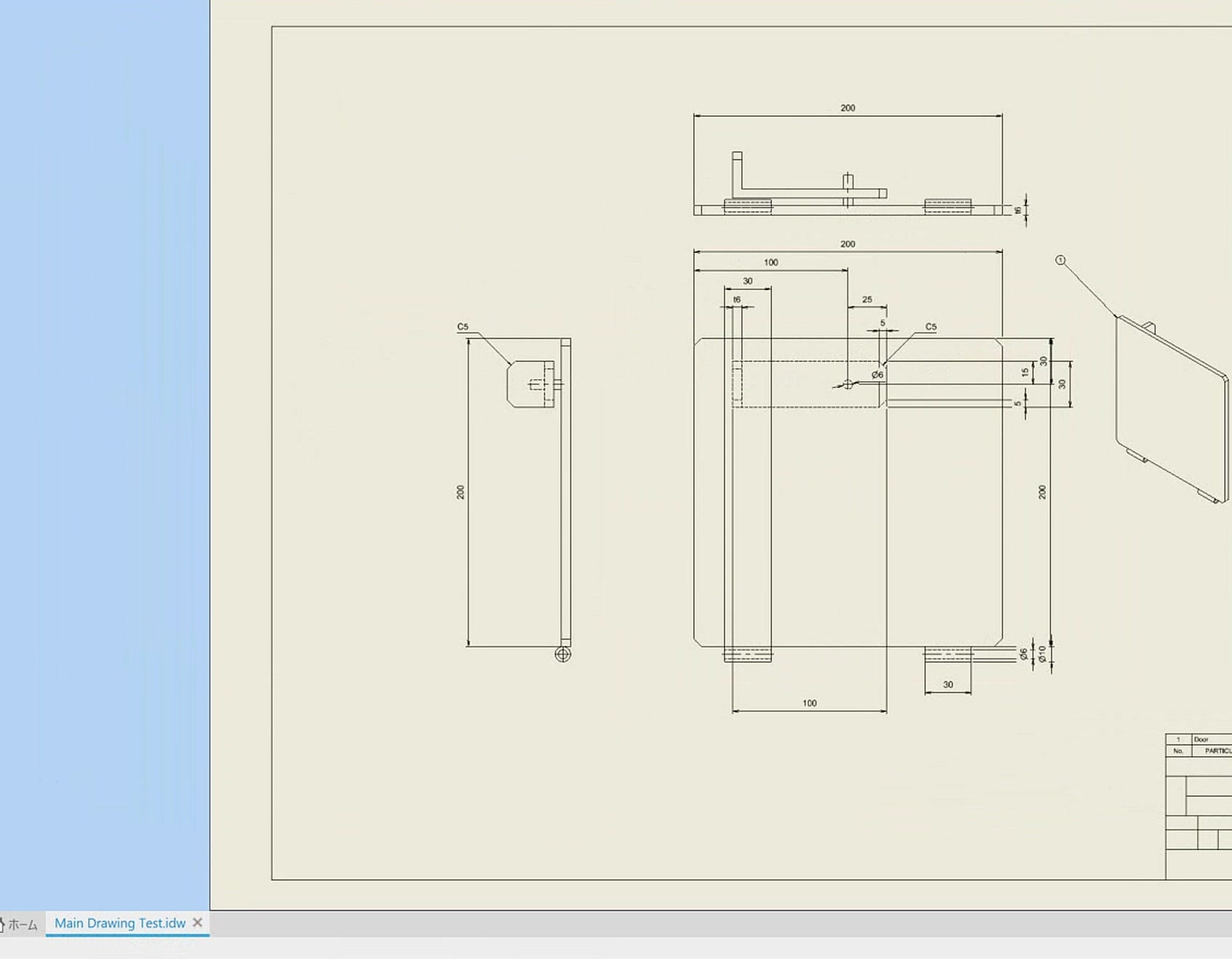
A part drawing created by 1 Sheet in Inventor: views, dimensions, hole and chamfer notes
The result of 1 Sheet for one part
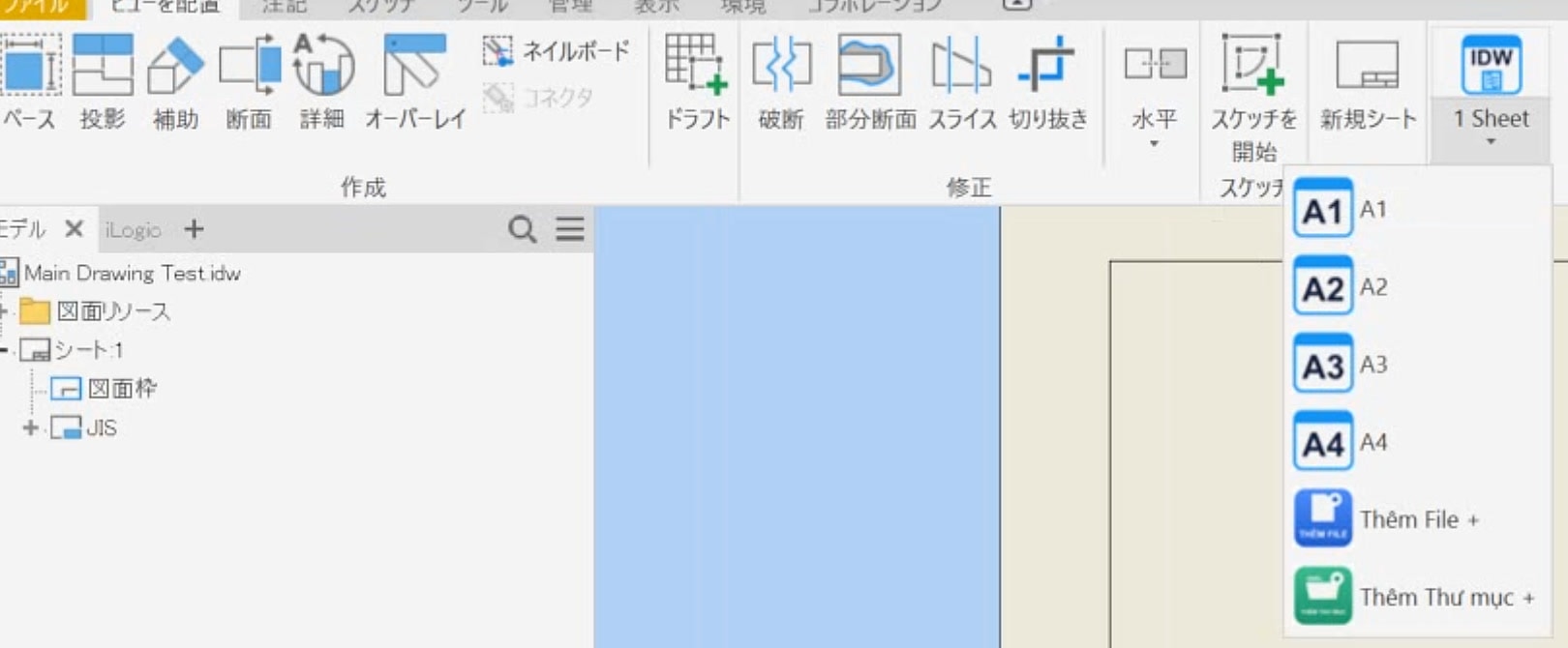
The 1 Sheet drop-down: A1–A4, Add File + and Add Folder +
Choose a paper size, or Add File + / Add Folder + for a batch

Result

  • One single-sheet IDW per model, named after the 3D file
  • Batch: runs in the background, reports when done

Practical value

Fewer repeated drawing steps. You start from a laid-out drawing to check and finish.

LimitsIf step 1 fails or is canceled, the later steps do not run
All Sheets

One multi-sheet IDW for an assembly, one sheet per part.

  1. Input

    Assembly (.iam)

  2. Process

    5 steps for each part

  3. Output

    Multi-sheet IDW

When to use it

You want the part drawings of an assembly in one document to review, manage and export.

You choose

  • The open assembly, or Add File + / Add Folder + (.iam only)
  • Paper size A1–A4

Done automatically

  • Takes the first-level components
  • Skips suppressed, virtual, Purchased, Reference and Phantom components
  • One sheet per part, 5 steps in one run
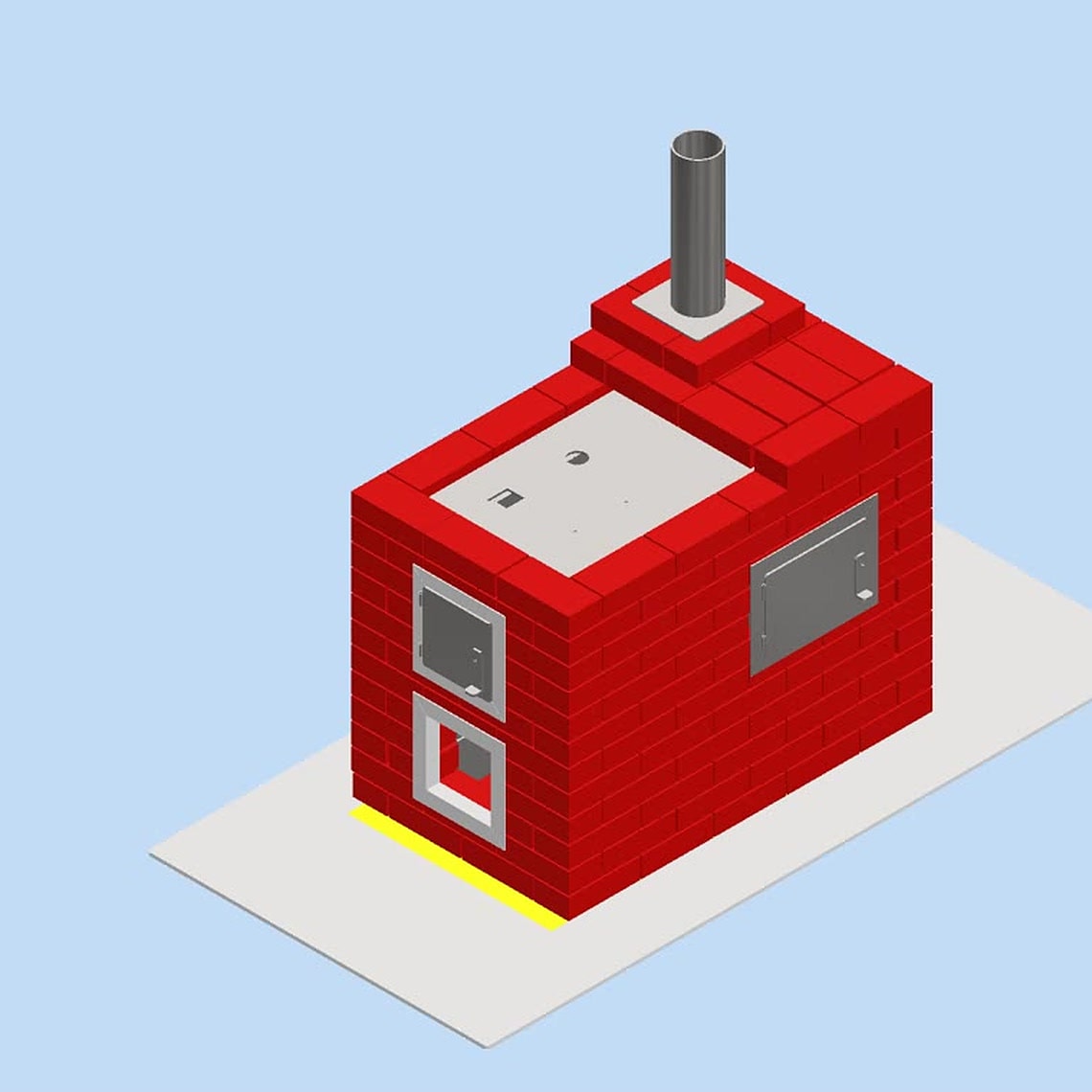
A 3D assembly (a brick oven) open in Inventor
Input: the 3D assembly
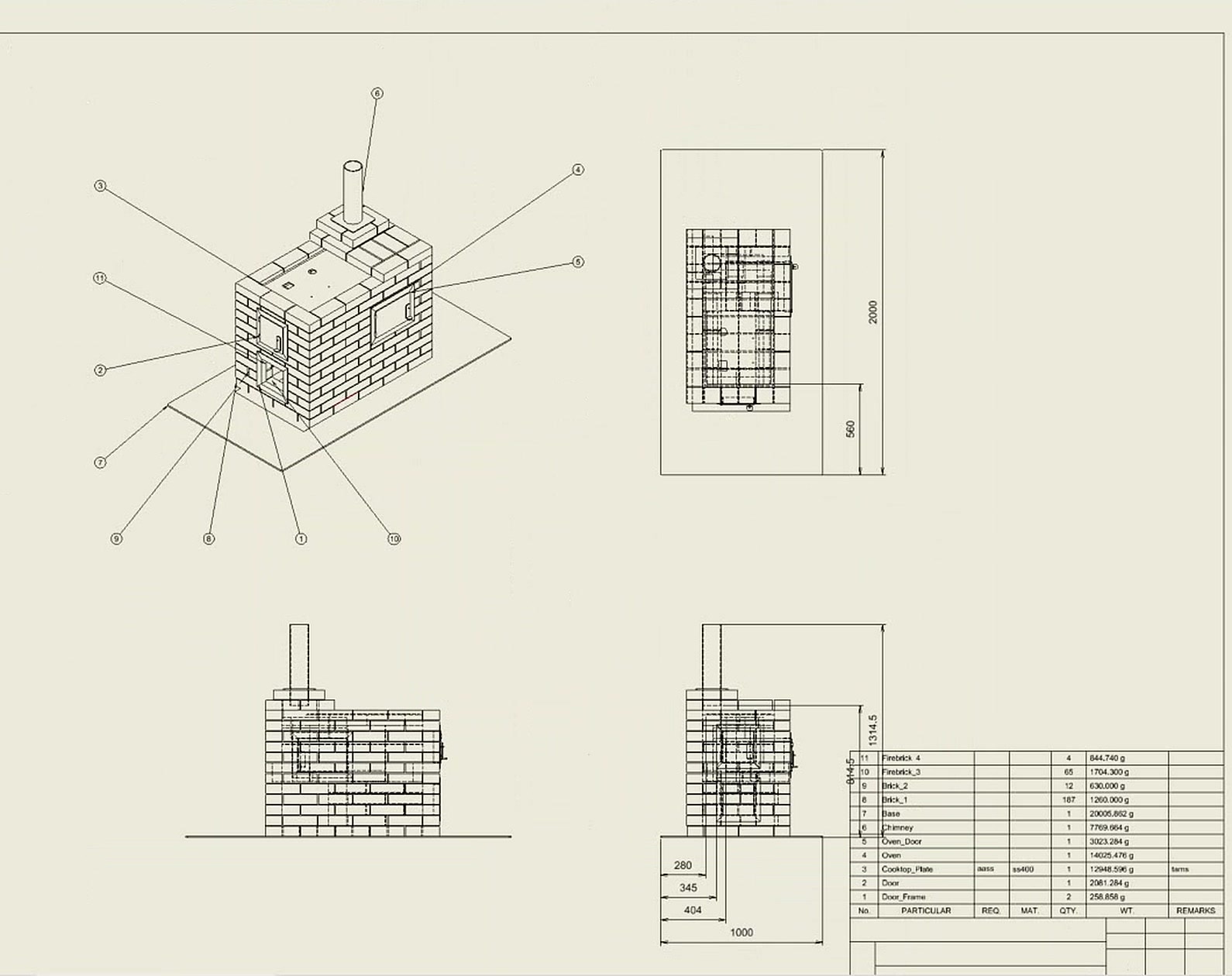
The overall assembly sheet in the IDW: views, isometric view, balloons, dimensions and BOM
Result: the overall sheet; the same IDW holds the part sheets
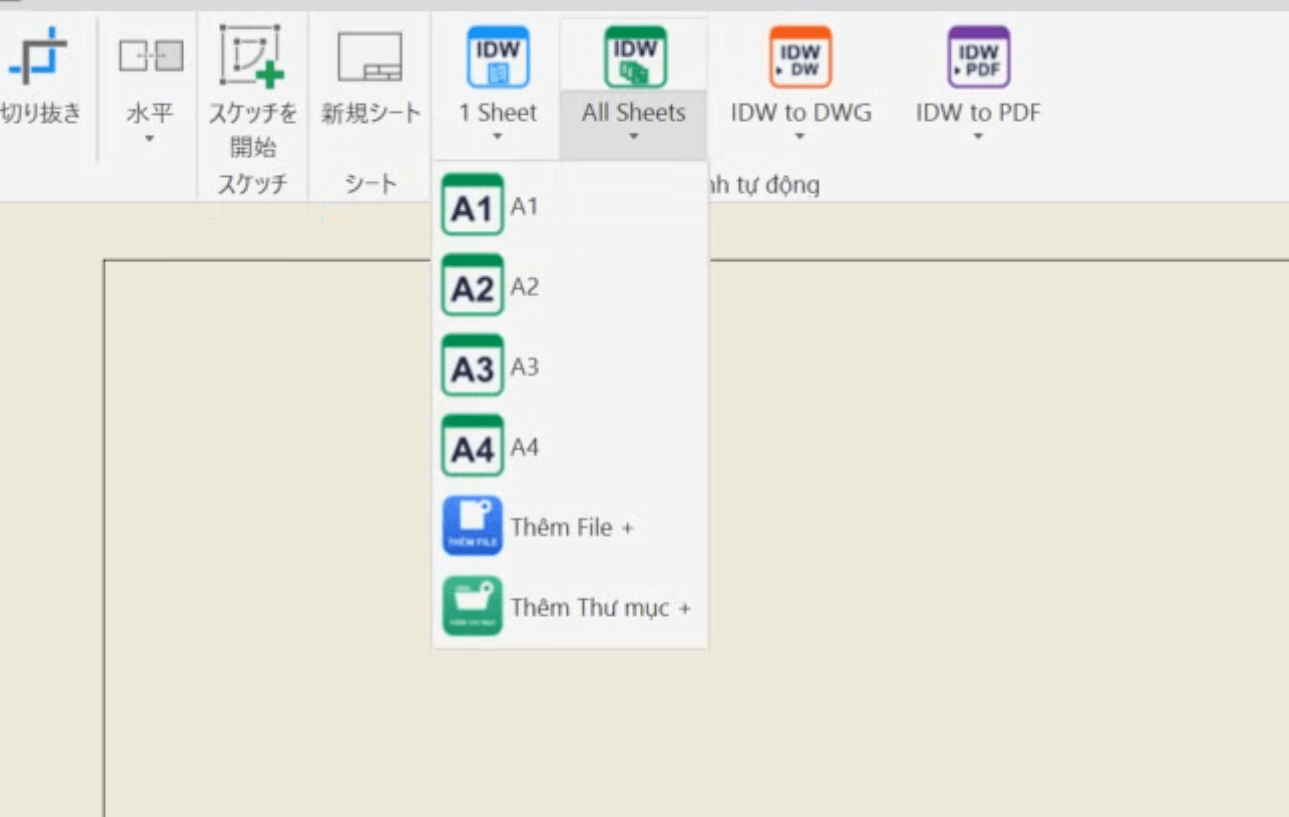
The All Sheets drop-down: A1–A4, Add File + and Add Folder +
Choose a paper size, or Add File + / Add Folder + for a batch

Result

  • One multi-sheet IDW per assembly, named after the .iam
  • Batch: runs in the background, reports when done

Practical value

All part drawings of an assembly in one document, easy to review and export to DWG or PDF.

LimitsAssemblies (.iam) onlyFirst-level components only, not every sub-assembly level

IDW to DWG

Merge IDW sheets, even mixed A1–A4, into one DWG.

  1. Input

    IDW (A1–A4 sheets)

  2. Process

    Merge in AutoCAD, scale

  3. Output

    One DWG

When to use it

You hand over or keep editing drawings as DWG.

You choose

  • The active tab or all open tabs
  • Or Add File + / Add Folder + for many .idw files

Done automatically

  • Merges in AutoCAD in BOM order, each sheet on its own non-plotting layer
  • Scales sheets so AutoCAD measurements match the IDW; text and arrows follow the paper size
  • Keeps the BOM as shown, hand-edited cells included; a part sheet keeps only its own row
  • Fills title-block values, purges unused blocks
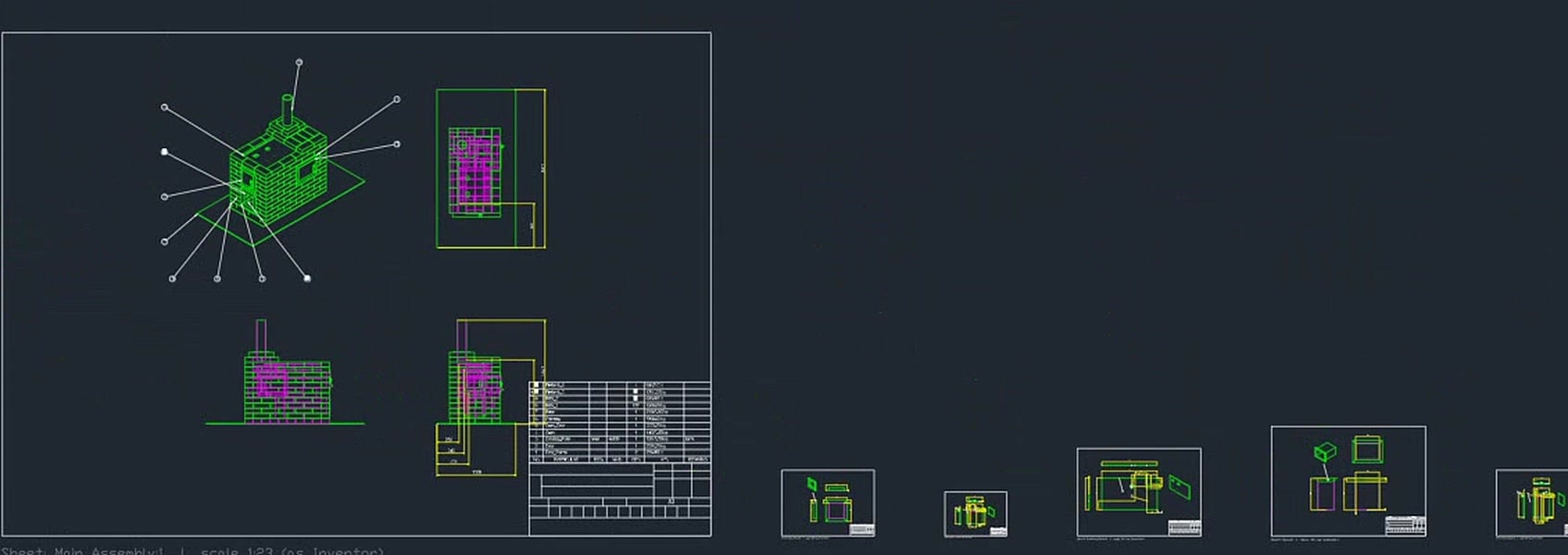
One DWG in AutoCAD holding the assembly sheet and the part sheets in a row
Same assembly: the sheets merged into one DWG
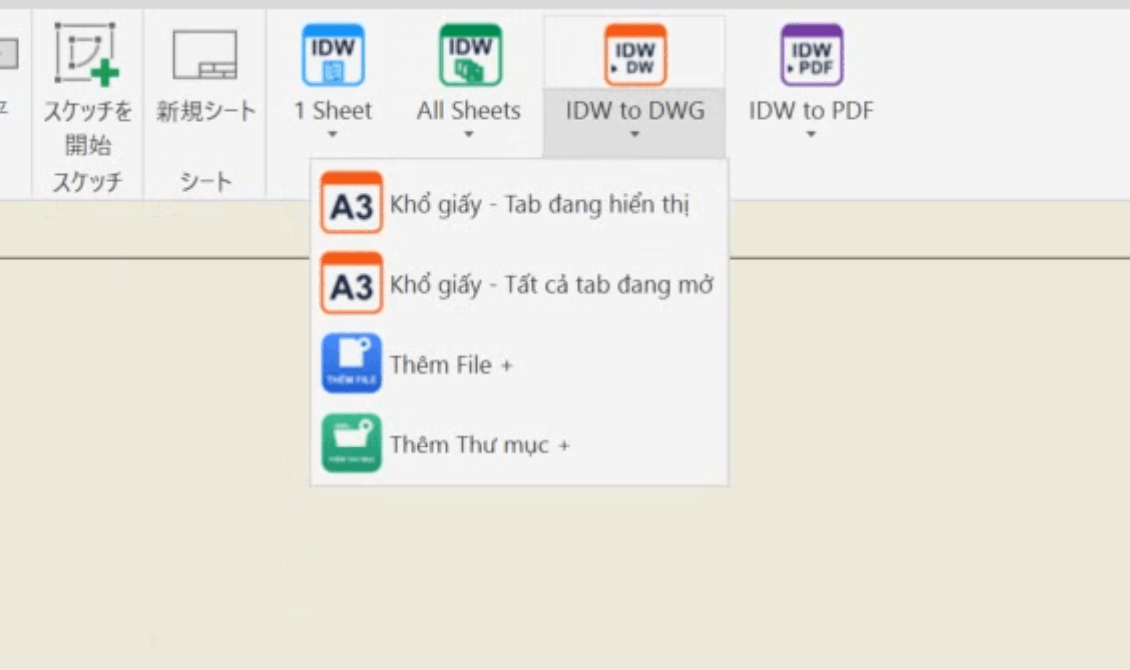
The IDW to DWG drop-down: paper size for the visible tab or all open tabs, Add File + and Add Folder +
Export the visible tab or all open tabs, or run a batch

Result

  • One DWG per IDW, same name
  • No AutoCAD: one DWG per sheet, in a <name>_SheetDWG folder

Practical value

Less hand work merging sheets and cleaning up the DWG before handover.

LimitsAutoCAD is needed to merge into one DWGLocked, read-only or duplicate-named files are skipped and reported; an existing result file prompts first

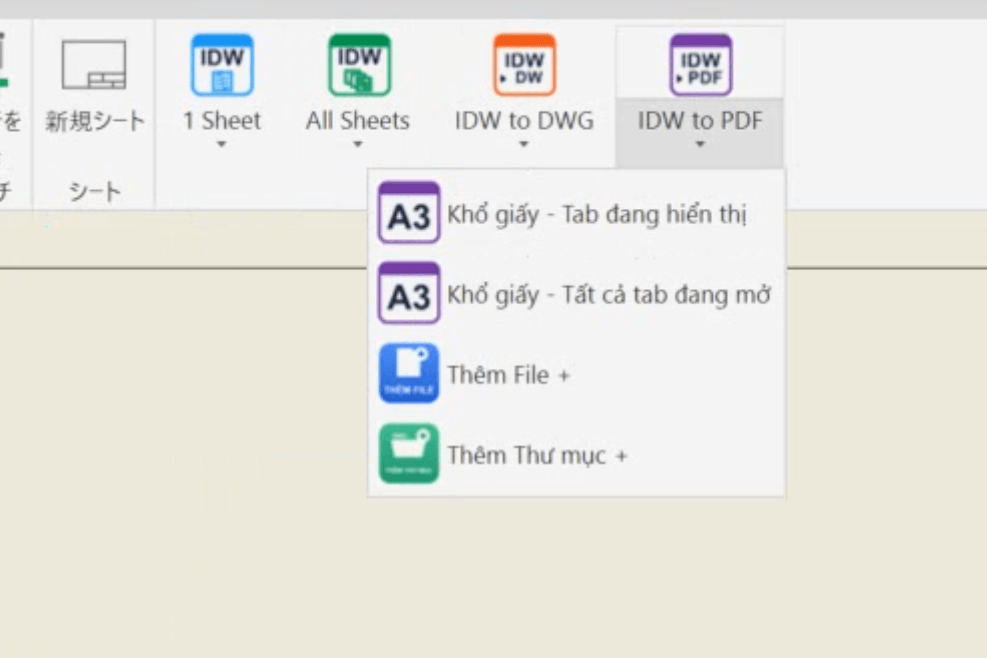
IDW to PDF

Export all sheets of an IDW as one multi-page PDF.

  1. Input

    IDW (A1–A4 sheets)

  2. Process

    Export each sheet at its size

  3. Output

    Multi-page PDF

When to use it

You need a document set that is easy to check, share and print.

You choose

  • The active tab or all open tabs
  • Or Add File + / Add Folder + for many .idw files

Done automatically

  • Exports every sheet, even mixed A1–A4
  • Each page keeps its sheet’s paper size
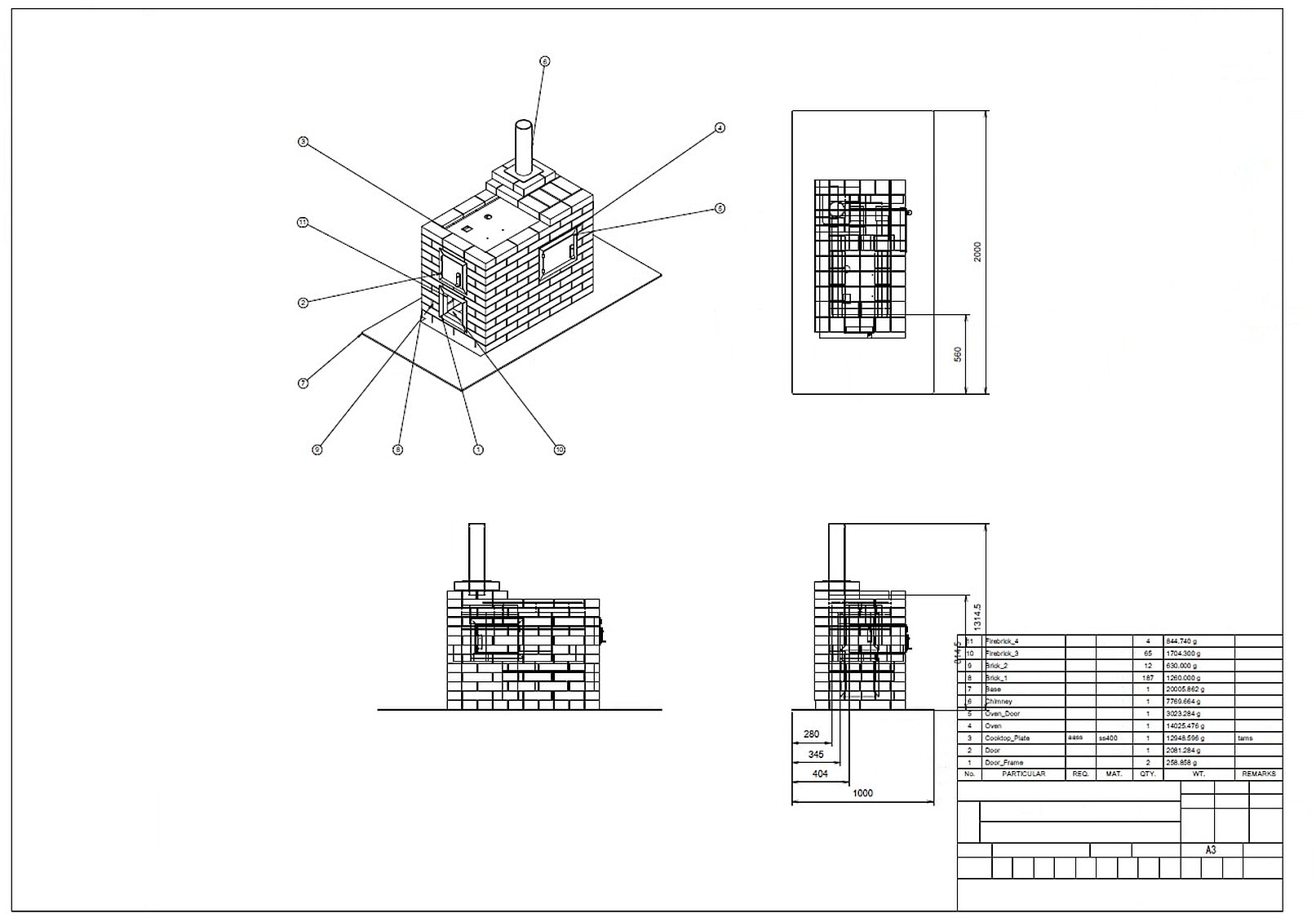
The first PDF page: the overall assembly drawing with balloons and BOM
Same assembly: the overall page in the PDF
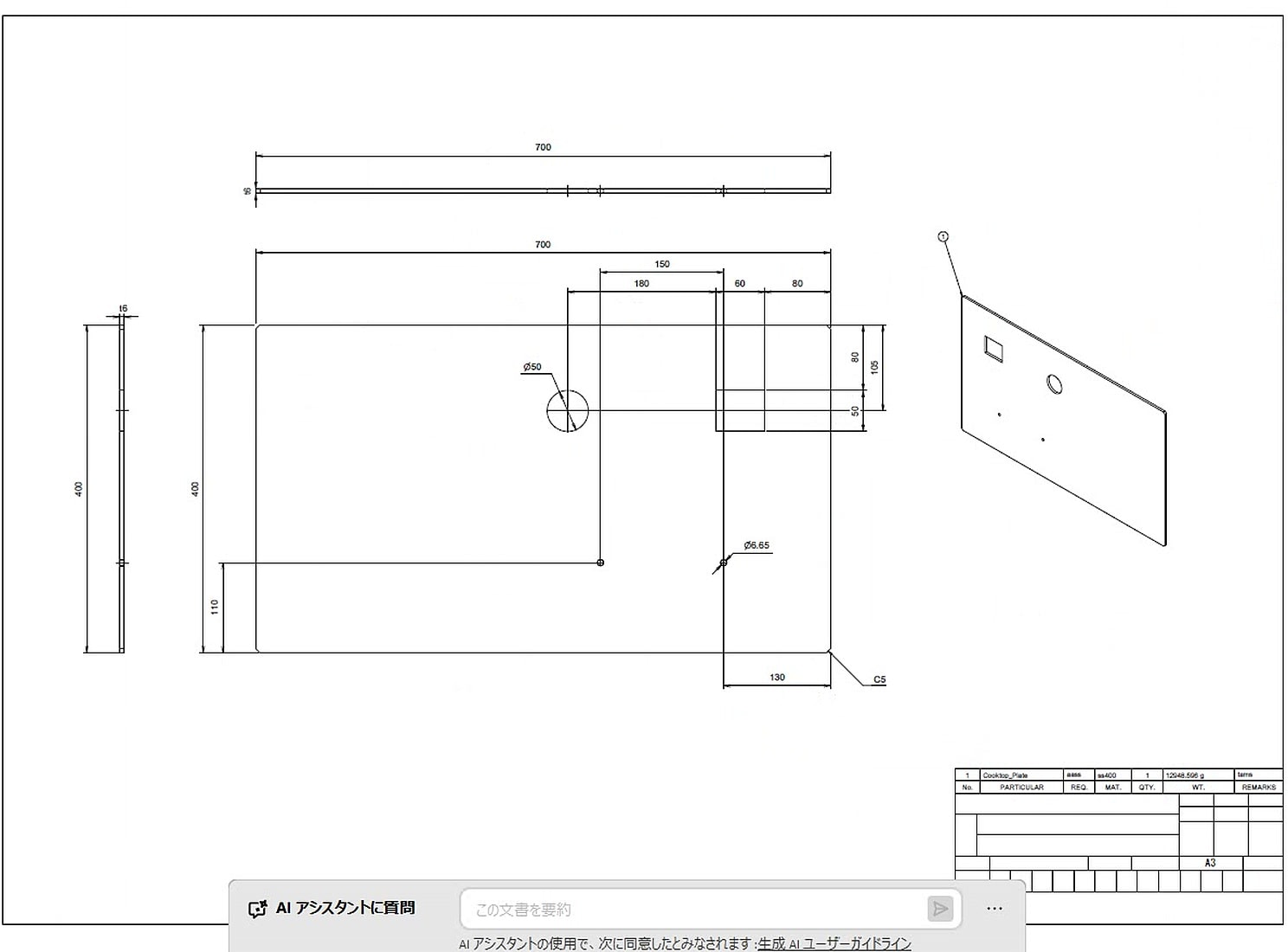
A part page in the A3 PDF, with dimensions, hole and chamfer notes, balloon and title block
Same PDF: a part page (A3)
The IDW to PDF drop-down: paper size for the visible tab or all open tabs, Add File + and Add Folder +
Export the visible tab or all open tabs, or run a batch

Result

  • One PDF per IDW, same name
  • Batch: one PDF per IDW, in the background

Practical value

A document set that is easy to check, share and print, without exporting sheet by sheet.

LimitsSeveral IDW files are not combined into one PDFLocked, read-only or duplicate-named files are skipped and reported; an existing result file prompts first

Shared by all four buttons

What supports your work

  • A1–A4 paper sizes

    Chosen under each button; remembered separately for each.

  • Your drawing template

    Keeps your title block, styles and standard. It works on a copy, so the open drawing is not changed.

  • Batch processing

    Runs in the background without opening each drawing, with a progress percentage and a results report. Inventor must remain running.

  • Support log

    Writes RibbonAddIn.log in %APPDATA%\RuleButtons to send when you need help.

  • Works offline

    According to the product documentation, your models and drawings are not sent off your computer.

  • Versions, languages

    Inventor 2026–2027 on 64-bit Windows, with the iLogic add-in loaded. 9 languages; the four button names stay in English.

How you work with it

Start in four steps

  1. 1

    Open in Inventor

    Go to the Place Views tab and find the Auto Rules panel.

  2. 2

    Choose a paper size

    A1–A4, or the export scope (active tab or all open tabs) for the export buttons.

  3. 3

    Click a button

    One file, or Add File + / Add Folder + for a batch.

  4. 4

    Check and approve

    Check against the actual part before use.

From payment to first use

  1. 1

    Pay and download

    One installer for Inventor 2026 and 2027.

  2. 2

    Send your Machine ID

    Install the software, then paste the Machine ID it displays into your order page. The license is tied to that computer.

  3. 3

    Activate

    Import the license file we email you, then start using the Auto Rules panel.

Pricing

Simple 12-month license

Try it first, no payment required. If you like the experience, you can order a license.

What you get

  • All 4 buttons: create drawings, export DWG, export PDF
  • Annual updates for the latest Inventor release
  • Email support
  • Interface in 9 languages

AutoRules Drawing · 12-month plan

Early-bird offerSave US$14 on your first 12 months

Standard price US$46/year

US$32

for the first 12 months

About US$2.67/month · Paid once for 12 months

Register before Dec 20, 2026

Get a full 12 months of use for US$32.

The offer applies to the first year only. Renewals are charged at the price announced at that time.

Pay once · License for 1 computer · Valid 12 months

Before you buy

System requirements

  • Windows 64-bit
  • Autodesk Inventor 2026 or 2027, installed and running
  • Inventor’s iLogic add-in loaded (it comes with Inventor)
  • AutoCAD: only to merge into one DWG with IDW to DWG

English · Tiếng Việt · 日本語 · 中文 · 한국어 · Deutsch · Français · Italiano · Español

Questions people ask

Does it work without Inventor?

No. It is an add-in that runs inside Inventor 2026 or 2027. "Background mode" in a batch only means drawings are not opened on screen one by one.

Can I use the drawings straight for manufacturing?

Not directly. AutoRules quickly creates a first-pass drawing for you to refine further. For a part drawing it creates the views and basic dimensions automatically; how complete the result is depends on the part geometry and the technical requirements. For an assembly drawing, the automatic dimensions are for reference only and must be edited and completed manually. Every drawing must be checked and approved before it is issued or used for manufacturing. Try it on a copy of your files first.

Do I need AutoCAD?

Only to merge all sheets into one DWG. Without it, IDW to DWG saves one DWG per sheet. The other three buttons do not need AutoCAD.

Are my models and drawings sent anywhere?

According to the product documentation, it works offline and does not send drawings, models or personal data off your computer.

The buttons do nothing after installing. What now?

The buttons are on the Place Views tab, Auto Rules panel. The first time you run one, Inventor shows the iLogic Security Advisor: choose the second option. Many people miss this step.

Do Inventor 2026 and 2027 need different versions?

No. One installer and one license work with both. The license is tied to one computer.

How do I get the software after paying?

Pay, download the installer from your order page, install it and send the Machine ID it shows. We email the license file (.lic) for that computer.

How do I update or uninstall?

Update by running the newer installer. Uninstall in Windows Settings → Apps.